Do you take lots of screenshots?
Do you often find yourself retyping text that's stuck inside an image? Have you ever spent hours trying to find something where you know you sent someone a screenshot of it a while back?
Screenotate is an app for macOS and Windows that might help you with your screenshots. Every time you take a screenshot, Screenotate steps in to recognize and save the text inside (using Optical Character Recognition), along with the URL and the title of the place where you took the screenshot (where possible).
And because Screenotate does all this automatically, you don't need to learn anything new to use it! Once you install Screenotate, you can keep taking screenshots the same way you always have – one keyboard shortcut and drag – only now, they'll be tagged with all this extra information, so you can search them later, and know where they're from, and paste their text into other places.
release notes | or download for Windows
Screenotate is smart, terrific, and indispensable — it's exactly how screen capture should have worked all along.
Instabuy, I'd actually been looking for something like this for a long time.
In just a few weeks, Screenotate has saved me literally hours of retyping. It is fast, accurate, and easy to use. You would be nuts to retype any text from screen. You can even use your computer camera to capture text for quick OCR instead of a scanner.
This is a wonderful little tool.
This is fantastic.
Want to hear about feature updates or versions for iOS, Android, and other platforms?
-
"Wait, where did I see that?"
Screenotate records useful metadata, not just text. It saves the title of the window, originating URL, time the screenshot was taken, and more.
Each screenshot is a self-contained HTML file on your computer, which you can open up in your Web browser or share with friends.
-
Never lose a screenshot again.
Using Screenotate's menu pane, look at recent screenshots and quickly search your past screenshots. You can even drag images directly from here into a chat with someone!
Click a screenshot to open it up in your browser, or right-click to reveal the screenshot file in Finder.
And because all your screenshots live on your computer, searching and browsing your screenshots with Screenotate is much, much faster than it would ever be in an online service.
-
Recognize text in 100+ languages.
Screenotate uses the powerful Tesseract open-source Optical Character Recognition engine, developed by HP Labs and Google. It can recognize text in your screenshots in any of the 100+ languages supported by Tesseract. Just click a button in Screenotate's Preferences window to download support for any language you want.
-
Your computer, not the cloud.
Unlike many notetaking, screenshot, and OCR services, Screenotate is a desktop app, not a cloud service. The OCR engine runs on your computer, not in the cloud. Your screenshot data never leaves your computer, unless you put your screenshot files on a service like Dropbox or iCloud yourself.
Plus, as long as you keep the HTML files around, you'll always be able to search and view your screenshots, even without Screenotate.
-
Choose the shortcuts you want.
On macOS, Screenotate can automatically replace the Apple screenshot function and use the same shortcuts, Shift-Command-4 and Control-Shift-Command-4, so you don't need to retrain your muscle memory. Or you can customize its shortcuts yourself. You can also set where Screenotate should save screenshots.
Notes
-
Screenotate requires macOS 10.11, Windows 7, or newer.
-
Screenotate uses Google's well-developed Tesseract OCR engine, but it isn't perfect. In particular, it might not work as well on non-Retina (lower-DPI) displays.
-
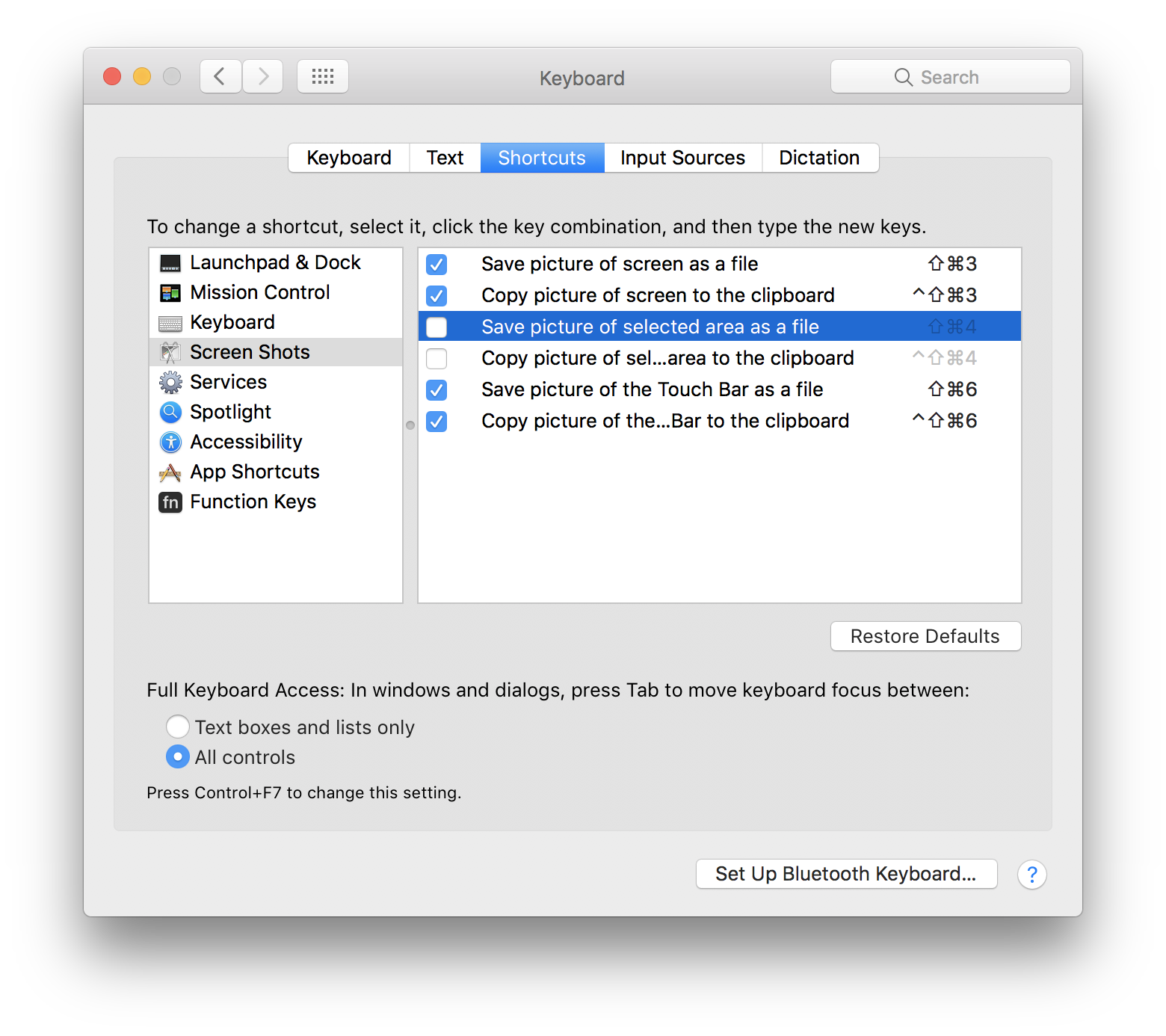
If you set Screenotate to use Shift-Command-4 on Mac and then uninstall it: you might want to re-enable the original Mac shortcut. Go into the Keyboard section of System Preferences and re-enable the two original Mac screenshot functions under Shortcuts there.
-
Although Screenotate detects the correct window title for any window (active or inactive), its URL detection is not as solid: if you take a screenshot from any browser window, it will capture the URL of the frontmost window of that browser.
Credits
The camera icon is from Kidiladon on The Noun Project; it's licensed under Creative Commons Attribution 3.0.
Screenotate includes the Tesseract OCR engine, prerelease version 4.0, under the Apache 2.0 license.